Sunday, September 30, 2018

Cat Shelves

Here's a quick, easy project for all you feline fanatics out there.  Cats need a place to jump, climb, and scratch, and if you don't give it to them, they will jump, climb, and scratch all over your furniture.  We recently adopted a new kitty, and to welcome her to our home I decided to build a set of "cat shelves" (for lack of a better word), to give her a place to climb around in our living room.


The idea is rather simple, and I didn't think of it on my own.  There are plenty of examples of this sort of thing floating around the internet, I just adapted it to the available space and decor of the room in which I wanted to install it.

I made the shelves out of inexpensive 1"x8" pine boards that you can pick up at any big-box hardware store, or if you're like me, you might even have some lying around in your scrap lumber pile.  I measured the area, put my design down on paper, and cut the boards to the desired lengths.

Next I pulled out a router with a Roman ogee bit to add a little decorative detail to the edges.  I made a couple of passes around the three exposed edges of each board, and then went over the whole board with 220 grit sandpaper to prepare it for painting.

I painted the bottom face as well as the three routed edges, first with primer, then with two coats of flat white interior paint.  Once the paint was dry it was time to install the carpet for the top of the shelves.


I stopped by a local carpet store, told them what I was doing, and asked if they had any remnants they could sell me.  Instead they showed me some scrap they had lying around and told me I could take what I needed from that, so the carpet cost me nothing.

I cut the pieces I needed with a razor blade, and trimmed them up with scissors.  I used Liquid Nails to adhere the carpet to the pine board, which I may have done differently if I had it to do over again.  The Liquid Nails bonds excellently, but it has a seven day cure time, and stinks of solvent the whole time it is curing, so it delayed me bringing these into the house for longer than I had planned.

As for how to mount the cat shelves on the wall, I left the decision up to my wife.  She picked these decorative brackets from Amazon, and I think they compliment the room excellently.  It's important to take one's time and use a level to make sure the shelves are mounted in a visually appealing fashion.


In addition to the shelves, I also added a "climbing wall" to the area.  I had a couple of 2'x'2 carpet tiles lying around that I cut into sections and mounted to the wall by using drywall screws through the carpet and into studs behind the drywall.  The cat can then climb up the carpet on the wall to reach one of the platforms.  This provides her exercise, as well as gives her a chance to scratch something other than the furniture.


I hope you've enjoyed this short but entertaining project.  Hopefully it will inspire some of you to build your own cat-play-area.  If you have any questions about adapting this design to your own space, please let me know in the comments below.  Thanks for reading.

Friday, September 7, 2018

Using the Raspberry Pi to Pen Test Wireless Networks or The Coconut-Pi

Inspired by Hak5's wireless pen testing device named the Pineapple, I decided to pair a Raspberry Pi with a USB WiFi Adapter to create a small, portable device for monitoring wireless traffic, analyzing  wireless access points, or penetrating wireless networks.  Because the Pineapple was my inspiration, and I used a Pi as the basis, I've decided to whimsically call this device the Coconut-Pi.  Because of the potential for one to use this device for evil, I will place the standard disclaimer here:  I am not advocating the use of this device for anything illegal.  Do not attempt to gain access to any network that you have not been given permission to access.  Do not use this device to spoof any network with the intention of tricking people into logging onto your device.  Despite the fact that I find these disclaimers pointless and ineffective, seriously, prison does not seem like a good place to end up, so please use the following information responsibly.

The idea is fairly basic.  It uses a Raspberry Pi  connected to a USB WiFi Adapter capable of being put into monitor mode.  The Pi 3B comes with on-board WiFi, but the chip on the Pi does not support monitor mode, so the adapter is required.  Specifically, I used an Alfa AWUS036NHA long range USB Wifi Adapter, which utilizes an Atheros AR9271 chipset.  There are probably better WiFi adapters I could have used, but I purchased this adapter years ago, specifically because it could be put into monitor mode, and the driver came preinstalled on Kali Linux.  Conveniently enough, the driver is also included with Raspbian Lite, which is the OS I will be using.  If we want to make this rig portable, we can't forget the 5V rechargeable Li-ion battery as well.

One could ask the question, if this is supposed to be a pen testing rig, why would you use Raspbian Lite instead of Kali Linux, since Kali has also been ported to work on the Raspberry Pi?  The answer is simply, in my opinion, Kali does not run well on the Pi.  It's been a year or two since I tried it, so I can't remember exactly where it fell short, and there may have been improvements since then, but I prefer to stick to using Raspbian on the Pi whenever practical.  We will mainly be using Aircrack-ng and TCPDump, both of which are in the Raspbian repositories, and since both Kali and Raspbian are Debian-based, anything else that I end up needing down the road can also be installed on Raspbian.

When I first conceived of this project, my intention was to use a Raspberry Pi Zero.  I planned to use the Pi's UART to console into the Pi from a laptop, and then use a male micro USB OTG to female USB-A adapter to connect the WiFi adapter to the Pi.  This would have worked well, and I still may build that in the future, but since the Pi uses 3.3V TTL for serial communication on it's UART, I would need either a TTL to RS-232 converter (max232) or TTL to USB converter, and I didn't have either lying around in my shop.  I did order a couple 3.3V TTL to USB converters, but even with Prime 2-day shipping, I didn't have the patience to wait on it to arrive, so I redesigned the project using a Pi model 3B.  With the Pi 3B I can use the Ethernet port and a cross-over Ethernet cable to connect my laptop to the Pi, so no level shifter is required, and the Wifi adapter can plug directly into one of the 3B's female USB-A ports.  Bottom line, I ended up using a more expensive Pi, but saved some money on adapters, so based on cost there is little difference between the designs.

Setting up the Raspberry Pi


There really isn't too much set-up to this project.  I installed Raspbian Lite on an SD card, stuck it in the Pi, and did the basic Pi set-up (changed password, expanded the file system, enabled SSH, changed locale, timezone, and keyboard configuration, etc.).  If you need any instruction on doing basic set-up for the Pi, see my first Raspberry Pi post here.  The Pi will need an internet connection to do installation from the repository, and I'll be using the Ethernet port to connect to my laptop, so I set the Pi's built-in wifi to connect to my home network.  Another way to do this would be to change the settings on the laptop to allow the Pi to share the laptop's internet connections, but I chose not to do that.  As I mentioned before, to connect the laptop to the Pi I used a cross-over Ethernet cable, which simply swaps pins 1&2 with 3&6.  These days, thanks to auto-MDIX, you can use any old Ethernet cable and get away with it, but I'm stuck in the past, so I made a short cross-over cable for this project.

At this point, you will either need to assign static IP addresses in the same subnet on both your laptop and your Pi, or simply allow them to assign themselves their own link-local addresses via DHCP.

If the Ethernet ports on both your Pi and your laptop are set to DHCP, when you connect them directly they will soon realize that there is no DHCP server to give them an address.  Once they become aware of this, they will assign themselves IP addresses from the link-local address space of 169.254.0.0/16.  You will then need to find the Pi's self-assigned address by using the command: ifconfig.

If you choose to use static IP addresses, be sure to choose an obscure subnet such as: 172.30.253.0/30 to avoid conflicting with any wifi network you might be auditing.  Using this example, the /30 subnet (or 255.255.255.252) only has two assignable IP addresses, so we'll call the Pi ".2" and the laptop ".1".

To change the IP address on the Pi, find your Ethernet interface name with ifconfig, and edit /etc/dhcpcd.conf to add the following lines:

interface enx...  # replace enx... with your interface name
static ip_address=172.30.253.2/30


To change the IP on my laptop running Kali Linux I went to Settings>Network>Wired>Add Profile... and created a new profile with the following settings:

Address: 172.30.253.1
Netmask: 255.255.255.252
Leave Gateway and DNS blank

To change the IP on my laptop running Windows 10 go to Control Panel>Network and Internet>Network Connections>Ethernet>Properties>IPv4 Properties and set the following:

IP Address: 172.30.253.1
Subnet mask: 255.255.255.252
Leave everything else blank

Up until this point we have needed a monitor and keyboard to do the initial configuration on the Pi, but now that we can remotely access the Pi using our laptop, we can do everything else via SSH. (Actually it is possible to do all the prior steps headlessly as well, but that is slightly more complicated, and a subject for another post.)

If you're using Linux you can SSH into the Pi using:

ssh -l pi 172.30.253.2
(obviously if you used a different IP address then use that instead)

And in Windows I like to use Putty for SSH.  Since I will be using this connection again in the future I made sure to save the Session for future use.

So now we're logged onto the Pi, and the Pi has internet access via its wifi, so let's install aircrack-ng and tcpdump:

sudo apt-get update
sudo apt-get install aircrack-ng tcpdump -y

And that's it.  The Pi is ready for its initial mission.  Plug in the Wifi adapter, watch the lights flash, and run ifconfig to verify the Pi recognizes it.  I'm sure that I will install additional functionality in the future, and scripts will be written to simplify tasks, but for now, we should be good.  To test to make sure everything is working run:

sudo airmon-ng

note the Interface name of your Wifi adapter

sudo airmon-ng check
sudo airmon-ng check kill
sudo airmon-ng start wlx...  # replace wlx... with your interface name noted above

If you are using a new version of Raspbian (Stretch or later) which uses predictable network interface names, after the command above you will receive a message that the name is too long, and it will be renamed using the old style, which in this case is wlan1 (or more specifically wlan1mon now that it's been put in monitor mode.) Quick note, I put the three commands above followed by another airmon-ng into a bash script so I can now put the adapter into monitor mode with one command.

So now that we've got a WiFi interface in monitor mode, what can we do with it?  First let's see what Wifi networks are in range with:

sudo airodump wlan1mon

This gives all sorts of useful information, such as channel, encryption, and BSSID, which can be used for a number of different useful tasks such as capturing encrypted handshakes or monitoring traffic  on a specific network.  Speaking of monitoring traffic, now that we're in monitor mode, we can also use tcpdump to literally pull wireless packets out of the air like so:

sudo tcpdump -i wlan1mon

This information can be fed back to the laptop, or to a desktop, to be analyzed by Wireshark or any script you can dream up.  Any unencrypted traffic will be easy to decipher.

So that is as far as I'm going to take this post.  I may make another post on using this device in more detail in the future, but for now there is plenty of information out there on using aircrack-ng and tcpdump.  Since we have two WiFi interfaces on this device, one could even do a man-in-the-middle set-up if one was so inclined, but I would like to stress once again that I strongly advise against using this device for any illegal activity.

What do I plan on using this device for?  It's intended purpose is wireless network auditing.  I plan to write a python script that analyzes the data from the output of airodump-ng.  For example, if the Coconut-Pi detected two networks of sufficient strength operating on the same wireless channel it could note that on an audit so that it could be adjusted.  I'll also admit that sometimes when you are sitting in a hotel room it can be entertaining to watch the wireless traffic just to see what people send through the air unencrypted.  It will make you value a home VPN server even more.

One last thing I'd like to mention is that if one were to use this device to capture a wpa2 handshake with the intention of trying to crack it, whatever you do don't use the Raspberry Pi for hashing.  I imagine you might be able to do it faster with pen and paper.  I joke, but seriously, use a different machine for hashing, unless you are cracking something for future generations to see long after you're deceased.

Wednesday, August 22, 2018

Voyeur Bluebird House with a Raspberry Pi

     Previous readers of my blog may remember my initial foray into filming birds using the Raspberry Pi.  That first experience was inspired by coincidence, as a family of wrens made their nest on the windowsill of my basement workshop, and proceeded to raise five young babies.  I built a small wooden enclosure to house a Pi, motion detector, and camera, and set it on the windowsill adjacent to the nest.  Each time the mother flew in to feed the babies, or the babies started to move outside the nest, the camera would turn on, and continue to film until movement had ceased.  I enjoyed the process of filming these birds so much, that I decided to try to recreate the project.  This time, however, I doubted I could rely on fate to deliver another family of birds to my windowsill.

     I decided the best way to ensure birds would nest in a place suitable for filming would be to build a birdhouse, and install a camera inside.  I decided on Bluebirds as the species of bird I wanted to film, and a quick Google search told me the dimensions of the birdhouse and opening I would need to attract that specific variety of bird.

     If you are not interested in how this project was done, and would just like to see a video of the chickadee that originally settled in the birdhouse, as well as the final video of the baby bluebirds, just scroll down to the section entitled "Filming the Birds", and watch the two YouTube videos.  I would hate to see people get bored by the technical specifics of the project and stop reading before they get to the videos of the birds.  If you are interested in how I built this project, or would like to build one yourself, please continue reading.

Building the Birdhouse


     I chose cedar as the species of wood to build the birdhouse due to its resistance to insects and rot.  I purchased cedar that was rough-sawn on one side to give the birds a surface that they could easily sink their claws into.  I also chose not to build a perch outside the entrance hole.  Instead, I flipped a piece of the cedar so that the rough-sawn surface was facing outward, allowing the bluebirds to grip the surface with their claws, but making it less suitable for predators, or other species of bird that would likely kill the bluebirds and steal their house, such as sparrows.  Also, since I was concerned about potential heat generated inside the birdhouse by the Raspberry Pi, I decided to add a small sheltered area to the back of the birdhouse that could protect the Pi from the elements, but also keep me from having to place it inside the actual birdhouse.  Since there are literally thousands of birdhouse plans available on the internet, and anyone emulating this project will need to pick a species native to their geographical location, I won't go into great detail on the construction of the birdhouse here.  If anyone has questions on the specifics of how the birdhouse was built, please feel free to ask in the comments at the end of this post.


      One thing to keep in mind as you are assembling your birdhouse is that you don't want to make the top of the birdhouse airtight.  Instead, make sure to leave some air-gaps, and even drill a few holes in the side near the top as well as in the bottom to allow cool air to flow in through the bottom of the birdhouse and hot air to escape out the top so it doesn't get too hot in your birdhouse during the summer months.  Also, keeping in mind the way my first project filming birds ended (see the end of this post), I made sure to do everything in my power to protect the birdhouse from predators.  I covered the mounting post with PVC pipe to make it more difficult to climb, and I added a squirrel baffle between the PVC and the birdhouse to keep anything that was able to climb the PVC from reaching the house (this is not the exact baffle I purchased, but it is similar.)  If a squirrel or other large rodent was able to reach the birdhouse, the double wall around the opening would make it more difficult for anything to widen the opening by clawing at it.

Installing the Hardware


     With the birdhouse constructed, it was time to figure out how to film the birds.  Since it was going to be dark inside the birdhouse, I decided to use a infrared night vision camera.  I also needed to find one with an adjustable focus, since the birds would be very close to the camera.  Here is the link to the particular camera I purchased for this project.  In addition, I was going to need an infrared motion detector that could be powered by 5V DC, but would be capable of sending a 3.3V signal to the Raspberry Pi, which I found here.  Finally I decided to add an LM75A Temperature Sensor inside the birdhouse so I could ensure that all the electronics did not cause the temperature inside to get too hot.

     With hardware in hand, I needed to find a way to mount the camera, motion detector, infrared LED, and temperature sensor inside the birdhouse.  For the camera and infrared LED, I settled on using a small piece of clear acrylic that I cut and drilled to fit.  I then epoxied some 12 awg insulated solid copper wire to the bottom of the acrylic so that I could mount the wire to the back of the birdhouse, and then bend it to point the camera in the exact direction I needed it to point.  Once the acrylic was in place and focused towards the center of the birdhouse, I wedged the motion detector between the acrylic and the side of the birdhouse.  A couple of drops from the hot glue gun made sure everything stayed in place.  I allowed the temperature sensor to hang slightly below the rest of the electronics to allow it to measure the temperature closer to where the birds would be nesting.


     The Raspberry Pi model I chose for this project was the Raspberry Pi Zero W, because of it's much lower price point, and it's smaller size.  I purchased it in a kit that came with a plastic case, so that I could mount the case inside the enclosure on the back of the birdhouse, and easily remove the Pi from the case for maintenance.  I then ran the camera ribbon cable from the Pi on the back of the birdhouse to the camera inside the birdhouse.  A few more wires to get power and signal to the motion detector, power and signal to the temperature sensor, plus power wires for the infrared LED, and the Pi was ready to go.  Feel free to use any of the GPIO pins on the Pi you would like to use, just be sure that the pins referenced in the Python script match the pins used on the Pi.


     I used a 16GB USB flash drive as a hard-drive to store the video files.  Other options would have been to use the SD card that held the operating system, but that would have limited space, and could shorten the life of the SD card.  Alternatively I could have just automatically sent the video files to my file server, but that would involve another point of failure, so even if the Pi was up and running, if something knocked the server offline or the power flickered and the server powered down, then any files being sent from the Pi would be lost.  The flash drive seemed to be the simplest solution, and as long as I transferred the video files remotely and wiped the USB drive at some point before I collected 16GB of video, I should be OK.

     One last detail, in order to be able to plug in the power supply for the Raspberry Pi without having to worry about the length of the power cord, I mounted a 120V AC outlet inside an outdoor enclosure on the back of the birdhouse.  I then attached a piece of outdoor-rated flexible power cable with a three pronged plug to the outlet.  I could now power the outlet using this power cable, and just plug the Raspberry Pi power supply into the outlet on the birdhouse directly below it.

Writing the Software


     With the hardware complete, all I had to do was to write the software, which is pretty much the exact same Python script I used in my last post where I filmed the birds in the windowsill with an added bit of code for the temperature sensor.  Regardless, in case you would like to copy the script for use in your own project, I will post it below.  Don't forget to add a line to /etc/rc.local to tell the Pi to run the script on boot.  Here it is:

 #!/usr/bin/env python  
   
 import RPi.GPIO as GPIO  
 import picamera  
 import time  
 import smbus # lets us access the i2c bus  
   
 MOTION_PIN = 4  
 BUS_NUM = 1 # 1 is the I2C bus (board pins 3 and 5)  
 TEMP_SENSOR1 = 0x48  
 EMAIL_THRESHOLD = 98  
 GMAIL_USER = 'email1@gmail.com' # email account used to send email  
 GMAIL_PASS = 'emailpass' # password for email account used to send email  
 SENT_FROM = GMAIL_USER  
 SEND_TO = 'email2@gmail.com, email3@gmail.com' # email recipient for alerts  
   
   
 def take_video(channel):  
      print 'motion detected' # for troubleshooting only  
      timestamp = time.strftime("%m-%d-%y-%H-%M-%S")  
      #camera.annotate_background = picamera.Color('black')  
      #camera.annotate_text = timestamp  
      camera.start_recording('bvid%s.h264' % timestamp)  
      print 'recording started'  
      camera.wait_recording(10)  
      while GPIO.input(MOTION_PIN):  
           camera.wait_recording(5)  
      camera.stop_recording()  
      print 'recording stoped'  
   
 def WRITE_TO_FILE(temp):  
     print 'writing to file' # for troubleshooting only  
     timestamp = time.strftime("%y-%m-%d %H:%M:%S")  
   
     f=open('/mnt/usb/temperature.txt', 'a') # this opens a file for writing.  
                          # the 'a' means append, which will   
                          # add anything written to the end  
                          # of the file.  
   
           # The line below writes to the file we are appending  
     f.write('%s %d \n' % (timestamp, temp))  
     f.close() # This closes the file we just appended.  
   
   
 def CtoF( Ctemp ): # this function converts the Celcius temperature passed  
                       # to the funtion to Fahrenheit and returns it.  
     return((Ctemp*9.0/5.0)+32)  
   
             
 def GET_TEMPS( sensor_add ):  
   print 'getting temp'  
   Ctemp1 = bus.read_byte(sensor_add)  
   Ftemp1 = CtoF(Ctemp1)  
   return Ftemp1  
        
        
 def SEND_EMAIL ( temperature ): # This function sends an email  
   
     timestamp = time.strftime("%m-%d-%y %H:%M:%S")  
     subject = 'Birdhouse Temperature Too High' % (location) + timestamp  
     body = 'The temperature in the birdhouse is %d degrees.' % (temperature)  
   
     msg = MIMEText(body)  
     msg['From'] = SENT_FROM  
     msg['To'] = SEND_TO  
     msg['Subject'] = subject  
   
     try:  
       server = smtplib.SMTP_SSL('smtp.gmail.com', 465)  
       server.ehlo()  
       server.login(GMAIL_USER, GMAIL_PASS)  
        server.sendmail(SENT_FROM, SEND_TO, msg.as_string())  
        server.close()  
        print 'email sent' # for troubleshooting only  
     except:  
       print 'email atempted and failed' # for troubleshooting only  
             
 # Begining of Program  
   
   
 bus = smbus.SMBus(BUS_NUM) # sets the variable bus to refer to I2C bus 1  
   
 camera = picamera.PiCamera()  
 camera.led = False  
   
 GPIO.setmode(GPIO.BCM)  
 GPIO.setup(MOTION_PIN, GPIO.IN)  
   
 GPIO.add_event_detect(MOTION_PIN, GPIO.RISING, callback=take_video, bouncetime=1000)  
   
 while True:  
      Ftemp_1 = GET_TEMPS ( TEMP_SENSOR1 )  
      if Ftemp_1 > EMAIL_THRESHOLD:  
           SEND_EMAIL (Ftemp_1)  
      WRITE_TO_FILE(Ftemp_1)  
      time.sleep(300)  
             

Filming the Birds


     So that's the how-to, and now onto the fun part: filming the birds.  I set the birdhouse up outside my house in August of 2017 and plugged it into one of our outdoor outlets.  Honestly, after a few months I had forgotten all about it.  One day in late spring of 2018, my wife Courtney saw a bird fly out of the birdhouse and asked me to check the camera.  Much to my surprise, the Raspberry Pi was still up and running from 8 or 9 months prior, and had captured plenty of video.  All that time outside in the winter weather hadn't cause any issues with the Pi at all (that's some well made hardware!).  Upon examination of the video, it appeared we had a chickadee moving into our bluebird house.  Well, I'm not one to discriminate, I was just happy to have a bird enjoying the birdhouse, and I was even happier that the video recorder was working.


     We continued to check the camera from time to time, watching the chickadee as it gathered it's nest building materials and meticulously arranged them just so.  Then one day, all of a sudden, there was a bluebird in the birdhouse.  I reviewed the videos, and narrowed it down to the change, but there was no "event".  One video showed the chickadee working on it's nest, and the next video showed a bluebird checking out his new pad.  If there was an altercation it must have happened outside the birdhouse.  Alternatively the bluebird may have just moved in, and when the chickadee returned to find a bigger bird in his house, he just decided to move on.  Regardless, I was now filming bluebirds, which was my original intention.

     Fast-forward about a month, and the blue bird had completely revamped the nest, and laid some eggs.  I was very excited to see them hatch.  Unfortunately, I underestimated how often I would need to clean off the USB flash drive that was holding the video once the bird had laid eggs.  When the birds were building the nests, they would make an appearance here and there, and then go back out to forage for food, and find more nesting materials, which only created a limited number of videos.  Once the eggs were laid, the bluebird spent most of her time sitting on the eggs inside the birdhouse, and consequently the flash drive filled up with video in just a few days.  Once it was full, it stopped saving the recordings, so unfortunately I missed the moment of hatching while we were out of town for a weekend.  Once I returned home and realized what had happened I quickly downloaded the existing video and erased the drive, so I was at least able to film the majority of the young birds' infancy.

      Below is a montage of the baby bluebirds I put together .  The total span of the videos is only a couple weeks, so you can see that they grew quickly.  I lost my infrared LED a few days after the babies hatched, so the lighting is a little off in the second half of the video, but of course I couldn't get into the birdhouse to change the LED until after the birds had vacated the nest.  It still turned out great in my opinion.  My wife Courtney thinks these little guys are cute, but personally I think they're ugly little spuds before their feathers fully grow in.


Wednesday, August 15, 2018

My Morning Routine

Good morning, and welcome back to my blog.  Anyone who has read my blog before knows, that while the topics can be eclectic, my posts typically deal with how to build something, be it using wood, electronics, computers, or a combination of mediums.  Since this is my first post after a year-long hiatus, I thought I would try something a little different and write a short post about my morning routine.  Over the past year, I have made several major life-changes, including quitting smoking, reducing my alcohol intake to next-to-nothing, drastically altering my diet, and starting a weightlifting routine.  The result of these changes are a healthier, happier me, and I would recommend any of them to anyone looking to get more enjoyment out of life.  Today I want to focus on a small, but important aspect of these life-modifications that has helped improve my life, and enjoy my days more thoroughly: my morning routine.

The way one starts and completes each day frames all of the experiences within.  By beginning the day on a positive, productive, and pleasurable note, I am able to set the tone of the day, and I have noticed a considerable difference in how I feel, and what I am able to accomplish.  The first item on the list was actually the most difficult for me, and I can't claim to be successful in this endeavor every single morning, but the first thing I strive to accomplish is to NOT HIT THE SNOOZE BUTTON!  I have struggled with waking up in the morning all my life, and had formed a habit of hitting the snooze button for anywhere from 20 minutes to an hour (or more) after the first time my alarm sounded.  The experts say that one actually feels more tired after hitting the snooze button than they would have if they had just woken up after the first alarm.  I don't know if that is true or not, but I doubt I get any added benefit from the additional sleep I get in 5 or 10 minute increment using the snooze.  One of the advantages I can attest to is more time in the morning, resulting in less stress and more productivity.  Also, if I successfully drag myself out of bed without hitting the snooze, I feel a sense of pride and accomplishment first thing in the morning, which is a nice way to start the day.

Once I am out of bed and have made a quick pit stop in the bathroom, I head to the kitchen, and turn on all the lights to make it as bright as possible.  This helps let my body know that even if it is still dark outside, my day has started (circadian rhythms and whatnot).  I notice that I feel significantly more awake after just a minute in a very bright room.  If you find yourself continuing to feel drowsy after getting out of bed in the morning, try adding some extra light in the room you spend your first 10 minutes in, and I would be willing to bet you will feel a noticeable difference.  If the sun is up when you get out of bed, then I would recommend stepping outside for a few minutes, as the the sunlight is tremendously more effective at waking one up than synthetic light.  Unfortunately I don't have the luxury of waiting for daybreak to start my morning, so man-made light has to suffice.

As the light begins to signal my brain that I am now awake, I turn my attention to hydration.  Assuming you do not wake up in the middle of the night to drink water, you will have gone without water since you fell asleep, and possibly longer.  As you will be able to surmise by the color of your morning urine, most people wake up dehydrated and craving fluids, whether you realize it or not.  I cannot claim credit for my morning cocktail recipe; it came from an excellent book by Aubrey Marcus titled Own the Day, Own Your Life: Optimized Practices for Waking, Working, Learning, Eating, Training, Playing, Sleeping, and Sex, which I highly recommend.  Aubrey's recipe is simple: water, sea-salt, and lemon.  I personally use the juice from 1/4 lemon and a pinch of Pink Himalayan Salt in about 16 oz of water.  Don't let the demonization of salt scare you away from trying this.  Unless you already have a serious heart condition, the salt is not bad for you, and will help your body absorb the water.  There is no need to chug it either.  Take your time, sip your water, feel yourself hydrating, and think about the great day you are about to have.

About this time the sun is beginning to peek over the horizon.  As sunrise begins to happen later in the morning, I may need to reorder my routine, but for now, it is time to feed the chickens and clean the coop.  Yep, you heard correctly, we have chickens.  As a matter of fact, my wife Courtney and I are planning on starting a chicken blog in the near future, and when we do, I will place a link to it here for anyone interested in taking a look at our fine feathered friends.  Anyway, the point here is not to specifically care for birds, but to accomplish some task, or set of tasks.  Some people recommend making your bed.  As long as you set your mind to doing something productive and accomplish it, you have set your brain on the right track for the day.

The next goal for myself is to get my heart rate up and get a little exercise.  Recently, this has been accomplished by taking a one mile walk with Courtney, but any physical exertion will do.  Sometimes we do a short steel maceworkout (trust me on this one and give it a try).  This is also a good time to get in a little stretching to keep the body limber and free from injury.  I don't do any serious weight lifting or cardio this early in the day, just enough to get the blood flowing.

Now that my body is nice and warm, it's time for my favorite part of the morning: a cold shower.  Seriously.  Not only has this been proven to have positive health benefits, it will also guarantee that you are fully awake.  In addition, it is one last test of willpower that will tell your mind and body that if you can endure this, you can accomplish anything today.  And in all honesty, it really isn't that bad.  I start my shower with warm water.  Since I bathe at night before I go to bed, all I do is rinse off in the warm water before I turn the knob to cold.  The key here is not to think about it.  Don't prepare yourself physically or mentally, just do it.  No need to torture yourself for too long, just a few minutes is all that's necessary.  Before I know it, it is time to get out, dry off, and head back to the kitchen for some well earned breakfast.

With all my other morning activities checked off my To-Do List, it's breakfast time.  Personally I like to have scrambled eggs loaded down with vegetables (onions, bell pepper, mushrooms, spinach, and whatever other left-over veggies or garden veggies we have that might go well in eggs.)  If eggs aren't your thing, eat whatever you like, but I highly recommend staying away from processed carbs, and certainly no refined sugar.  Anything with a high glycemic index will spike your blood sugar, and subsequently your insulin, and cause you to be hungry again in just an hour or two.  Starting your day off with an insulin-induced blood-sugar roller-coaster is a recipe for dietary disaster, not to mention the damage it can do to your pancreas, kidneys, and heart, among other things.

Last but not least, with breakfast out of the way, it is time for my morning coffee.  You may have noticed that I didn't mention coffee earlier in this article when I first got out of bed.  For over 20 years brewing coffee was the first thing I did in the morning upon getting out of bed.  If you just can't live without caffeine first thing in the morning, then an early cup of coffee or tea won't kill you, but I find with all the other stimuli I have early in the day, I really don't miss it.  Waking up without that jolt of caffeine in the blood is actually more pleasant, and if you really miss that jolt, reread the paragraph on a cold shower.

When it comes to additives to your coffee or tea, I would like to stress that I highly recommend passing on the sugar.  At no point in the day is refined sugar good for you, but I find it particularly destructive to your diet, appetite, and self-control first thing in the morning.  If you cut the large majority of sugar out of your diet all together, you will find that you no longer crave the sweetness, and things that used to need sugar will now taste fine on their own.  In addition to leaving out the sugar, if you add a little fat to your coffee it will slow down the absorption of the caffeine and give you more sustained energy instead of a quick jolt followed by a crash.  The traditional cream or half-and-half works fine for this, or you can go the more extreme route and use butter, as advocated by fans of bulletproof coffee.  Just remember, if you think using skim milk in coffee is a healthier option, lactose is just sugar, so skim milk is just sugar water that came from a cow.  Just say "no".

And that's my morning routine, for now.  As always things will continue to evolve, hopefully towards the positive.  I hope some of you were able to gain something from this post, and maybe even improve your own morning routines a little.  For everyone else, don't worry, I have several more posts on the way, including setting up a VPN using OpenVPN on a Raspberry Pi, building a bluebird-house with a built-in video camera activated by a motion sensor, building a chicken run, and live-streaming video from the chicken coop.  Until next time, stay safe and keep building.

EDIT: After my initial post, I was discussing my morning routine on reddit.com in the /r/productivity subreddit.  A user by the name of /u/iEphemeralX recommended I read the book The Miracle Morning: The Not-So-Obvious Secret Guaranteed to Transform Your Life (Before 8am).  Since I prefer audio books, I hoped over to Audible.com and picked up a copy.  While I can't say it was the absolute best self-improvement book I ever read, it was good enough that I finished the book in two days, and I would certainly recommend it to anyone looking improve their life.  Since reading the book, I have also adjusted my morning routine slightly.  I now get up at 5:30 instead of 6am, and I have added 15 minutes of meditation, followed by prayer, gratitude, and intentional thinking.  If you are looking for a little motivation or some direction on how improve your life, I recommend you give it a read.

Sunday, August 20, 2017

Raspbian Stretch Renames Network Interfaces

***Edit (Nov 2017): Currently Raspbian Stretch has reverted back to disabling Predictable Network Interface Names by default.  To learn how to set a static IP address using the current default configuration, see this tutorial.  To enable Predictable Network Interface names, use the command raspi-config to pull up Raspbian's basic configuration menu.  From the main menu select option 2 - Network Options, and then from the sub-menu select option N3 - Network Interface Names.***

As we are all aware by now, Raspbian released their latest version named Stretch a few days ago on August 16th, 2017.  So this weekend, when I was about to start a new project, I went to the Raspbian download page and downloaded a new image of Raspbian Stretch Lite.  While I waited on the download I skimmed the release notes, which unfortunately fail to mention an important change to the new operating system version: Predictable Network Interface Names.

Once I finished downloading and the image was written to the SD card, I proceeded to do the initial set-up of the Pi for this particular project, which in this case included setting a static IP address.  As usual, I opened /etc/dhcpcd.conf and edited the file with the IP information for eth0.  After rebooting, I was surprised to find that I was still issued the same dhcp address instead of the static ip address I specified.  After over an hour of troubleshooting and searching through forums, I finally found my problem: my network interface is no longer named eth0.  This should have been evident after my first ifconfig, but since I wasn't expecting a change to the interface name, my eyes just skimmed over that information and went straight to the ip address.  I'm hoping that by publishing this I can save someone else the same frustration and waste of time.

Predictable Network Interface Names are not new, but prior to Stretch they were not used by default in Raspbian.  The new naming scheme no longer uses the traditional interface names such as eth0, eth1, wlan0, etc, and instead uses hardware address based names to avoid ambiguity and prevent the accidental changing of interface names.  On the Raspberry Pi, since the Ethernet interface is connected through the usb bus, the mac address is used to identify the interface.  Specifically, the interface names will start with "en" for Ethernet or "wl" for wireless, followed by an "x" to indicate that it will be followed by the mac address, and then predictably the mac address.  For example, if an Ethernet port has a mac address of b827eb123456, then the interface name will be enxb827eb123456.  It is straight forward enough, but if you weren't aware of the change, it could certainly catch you off guard, and leave you wondering why configuring eth0 has no effect on the configuration of your Ethernet port.

In order to find the new name of your interface, simply use ifconfig and check the available interfaces.  If you would rather not use the new naming scheme, you can revert to the old naming scheme by adding net.ifnames=0 to /boot/cmdline.txt.  However, this is quickly becoming the new normal, as more and more Linux distributions switch to using predictable network interface names, so I highly recommend sticking with and getting used to using the new naming scheme, as it will soon be ubiquitous.

Here is a link to the forum post where I found the initial information regarding Raspbian Stretch and the change to predictable network interface names.


EDIT: Apparently the interface names are only affected on new installations of Stretch, and not on systems that are upgraded from Jessie to Stretch.  I assume the reason for this is so that every system with a static IP that gets upgraded to Stretch won't immediately lose their static IP.

EDIT: As of the latest version of Raspbian Stretch, released on Nov 29th, 2017, Raspbian no longer defaults to using Predictable Network Interface Names.  Instead it uses the old naming scheme of eth0, wlan0, etc.  They have also added a new option to raspi-config to allow you turn on Predictable Network Interface Names if you would prefer to use the new naming scheme.

Sunday, August 13, 2017

Reading Temperature Sensors and Displaying Data Using I2C Protocol and the Raspberry Pi

For this project, I am going to be using LM57A temperature sensors to measure the temperature inside my network and server cabinets, and communicate that back to the Raspberry Pi using I2C protocol.  I am then going to use that data to control cooling fans inside the cabinet.  I am also going to output the data to a 7-segment display, again using I2C protocol, and store the data in a log file so that it can be analyzed later.  Lastly I am going to have the Raspberry Pi send me an email if the temperature continues to rise and reaches a second threshold.  I am aware that this project is very specific to my own needs, as not too many people have network and server cabinets in their houses, but I believe that the techniques and methods used in this project will be very useful to others trying to do similar things, especially using I2C protocol to send and receive data.  I am going to break this project into several segments for easy reference.  They are as follows: using the LM57A temperature sensor, setting up and using I2C protocol with the Raspberry Pi, using the Adafruit I2C Backpack with a 7-segment display, controlling fans using the Raspberry Pi, and final Python script.


Using the LM57A Temperature Sensor


I looked at using several different temperature sensors for this project, and settled on the LM75A Temperature Sensor High-speed 12C Interface Development Board Module.  I chose the LM75A for several reasons, including cost, on-board analog-to-digital conversion, I2C interface, and ability to hard-wire the I2C address into the chip.  For those of you who would rather not read through my personal experience with the LM57A, here is a link to the data sheet.  For less than $3 US, this is an amazing little device, and has way more features than we will be using here.  You can actually set temperature thresholds on the chip itself, and use it as a thermostat without even involving the Pi, but enough about features we won't be using. I'll try to focus on the features that make this the perfect temperature sensor for this project.

The most important feature of this sensor, is that it has built-in analog-to-digital conversion, so it can send data directly to the Raspberry Pi, which is limited in only having digital GPIO pins.  I was also looking for something with an I2C interface, which I will cover more in-depth in the next section.  The nice thing about I2C is that you can connect multiple devices on the same 2-wire serial connection.  In order for this to work, each device must have a unique 7-bit address, which is where another feature of the LM57A comes in handy.  You can set the last three bits of the address by connecting the solder pads for A0 through A2 on the back of the PCB.  The first four bits of the address are '1001', and are hardwired inside the chip, so that gives us the option to use the addresses '1001000' through '1001111', which are the Hex addresses 0x48 through 0x4F.  With these 8 potential addresses we can hook up 8 of these sensors on one I2C circuit.  In the picture above you can see that the configuration of the pads makes it easy to set the address using a simple solder bridge.  The chip on the left is unset.  The chip in the middle is set to 1001001 (0x49) and the chip on the left is set to 1001011 (0x4B).  These registers must be set, and should not be left floating during use.

One last feature of the LM57A that adds a little bit of convenience to this project is that the input voltage can range from 2.8V to 5.5V.   This means that we can power these little units with either the 3.3V or 5V rail on the Pi.  If it was just the sensors the 3.3V rail would suffice, but since we are also going to be powering a 7-segment LED from the same source, and the 3.3V on the Pi is limited in the amount of current it can supply, we'll go ahead and use the 5V supply on the Pi, which is wired directly to the USB power source, and is only limited by the power supply that you are using for your Pi.

Setting-up and Using I2C Protocol with the Raspberry Pi


The image above is borrowed from
https://www.lammertbies.nl/comm/info/I2C-bus.html
I2C is a very simple, easy to use, serial communication protocol developed in the 1980s, primarily for use in intra-board communications.  It is also commonly referred to as I2C or IIC.  So why use I2C protocol?  Three words: "Conserve GPIO pins."  I2C only uses two wires for serial communication, and can use multiple devices on those same two wires.  It does this by using a master and slave configuration, where there is only one master device, and all other devices on the circuit act as slaves.  Communication can only be initiated by the master in order to eliminate the possibility of more than one device trying to communicate at a time.  It is obvious that this saves us a few pins by consolidating all the temperature sensors onto one serial input, but the real savings comes when using I2C to communicate with the 7-segment LED display.  If we used a traditional 4-digit 7-segment display we would be using up a whopping 12 GPIO pins for the display alone!  Considering there are only 26 usable GPIO pins on the Pi 2B and 3B, and I have already used up several of them on previous projects, this project would come close to maxing out this Pi's available pins if we did not use I2C.  Since we are using I2C, two pins for serial communication and two pins to control the cooling fans is all we will need for this entire project.

Now that I've discussed why I am using I2C, let's get to how to set up I2C on the Raspberry Pi.  Adafruit has a nice tutorial (link), but unfortunately it is out of date and doesn't work with the latest versions of Raspbian.  So, here is my own updated tutorial on enabling and testing I2C.

By default I2C is not enabled, so first we need to enable it.  This can be done the easy way using raspi-config, options 5, then option P5, but I prefer to understand what is happening under the hood, so let's go over how to quickly do this via the CLI.  First we need to edit the /etc/modules file to tell the Pi to load the I2C kernel module on boot.  Open /etc/modules with a text editor and add the following two lines to the end of the file:

i2c-bcm2708
i2c-dev

Next we need to edit the /boot/config.txt file.  Open /boot/config.txt with a text editor and uncomment the following line by removing the pound sign:

#dtparam=i2c_arm=on

And that's it.  I2C is now enabled.  Next we want to install the python module and command line utility that will enable us to utilize I2C.

sudo apt-get install python-smbus
sudo apt-get install i2c-tools

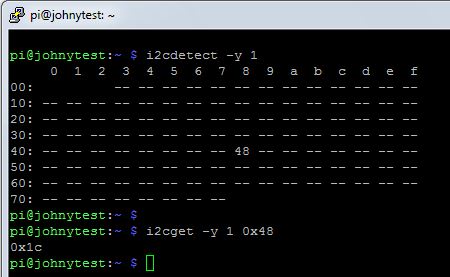
OK, we are ready to test this out.  Hookup one of the LM57A sensors to the Pi.  The I2C-1 SDA and SCL pins are on GPIO pins 3 and 5 respectively, and we will also need to to use a 3.3V and Ground pin to power the sensor.  To test to see if the Pi can see the sensor use the command i2cdetect -y 1, where the 1 refers to the specific I2C bus we are using.  On older models of the Pi this will be 0 instead of 1.


In the image to the left, you can see that the Pi has detected the temperature sensor with an address of 0x48.  On this particular sensor I have set A0, A1, and A2 to 0, so the full address should be 1001000 as explained above.  If we convert this to hexadecimal we get the number 48, which means everything is working as expected.  Next lets see if we can pull a temperature reading from the sensor.  For this we use the command i2cget -y 1 0x48, where 1 is the name of the I2C bus, and 0x48 is the address of the device we are polling.  As you can see, the sensor returned a value of 0x1c.  At first glance this may not seem like a usable temperature value, but lets think about this for a second.  First, this is a hex value, but most of us think in decimal.  If we convert 0x1c to decimal we get 28.  If you are in the United States like I am, we are also not used to thinking in Celsius, so we need to convert 28 degrees C to Fahrenheit, and we get 82.4 degrees F.  It's a warm day and I have the shop door open, so I am willing to accept that as an accurate reading.


So, now we can detect an I2C slave device, and take a reading from it, but the whole point of using I2C is that we can hook up multiple devices to the same two-wire serial bus. Since we only have one set of pins on the Pi to connect to the bus we are going to have to whip up a quick circuit board to connect multiple devices.  This can be done by soldering some pin headers on a circuit board and using solder bridges to connect the pins.  Be sure to use a multi-meter to make sure all the rows are properly bridged, and that none of the rows are bridged together.


Using the Adafruit I2C Backpack for 7-Segment Display


Adafruit makes a very handy little device called the backpack that takes I2C in and uses that to drive an LCD array.  For this project we are using the model HT16K33 that works with a 4-digit 7-segment display.  As always, Adafruit provides a nice tutorial (Here and Here) for getting this thing working, so I don't feel the need to go into great detail, but I'll outline the general process and we'll test it out.

First we need to solder the backpack onto the 7-segment LED display.  This is pretty self-explanatory, just be sure not to solder it on upside-down.  There is a stencil on the backpack that matches the display to help with orientation.  Next we need to solder on the pin headers for the two serial wires plus Vcc and GND.  With the male pin headers sticking out the back of the backpack, we can stick the backpack directly on the homemade I2C bus we just created.

To get this thing working I downloaded the software recommended by Adafruit:

sudo apt-get install -y git build-essential python-dev python-smbus python-imaging python-pip  python-pil

and then:


git clone https://github.com/adafruit/Adafruit_Python_LED_Backpack.git

cd Adafruit_Python_LED_Backpack

sudo python setup.py install

Once that is done, inside the /Adafruit_Python_LED_Backpack folder you just created, there is a folder called /examples which contains well documented code that will give you a thorough understanding of how to use these modules in Python.  If only every hardware maker was as thorough as Adafruit we could save so much time.  You can run these example scripts to make sure that your Backpack and 7-segment display are working correctly.


One last trick I'd like to mention regarding the 7-segment display being used for this project is that while this unit can only display numbers, it is able to display hexadecimal numbers, which gives it the ability to display the letters a through f.  I wanted to be able to display which area each temperature correlated to, so I needed to be able to write the strings "Cab1", "Cab2", and "Base" for basement.  Luckily the only letter in those labels that is not able to be represented in hex is "s".  Luckily there is no difference between 5 and S on a 7-segment display, so that is how I was able to make it display the necessary strings.

Controlling Fans Using the Raspberry Pi


Turning on the cooling fans for the network cabinets is the easy part.  Since I am using 12V fans they will need to be powered by an external power source and controlled by a relay wired to a GPIO pin.  If you are using a relay board similar to the one I am using (JBtek 4 Channel DC 5V Relay Module), then there is no additional circuitry required between the Pi and the board because the relay board already contains a resistor and an opto-isolator to prevent too much current from being drawn from the GPIO pin.  Just be sure to power the relay board with one of your 5V pins wired to Vcc on the board.

If you have followed any of my previous projects, you may know that I have already set-up a 12V (30 amp) power supply, a DC fuse panel, and a relay board for use with my automated sprinklers, so there was nothing for me to purchase other than the fans.  I wired the 12V power supply, through the fuse panel, to a switch to allow me to turn off the power to both sets of fans.  I wired the output of the switch to two relays so that I could control the fans in the two cabinets separately.  From the relays I ran 16 awg wire to the top of each cabinet where the fans would be mounted.  The fans I purchased had old IDE-style power connectors.  I like to keep things modular, so in order to make replacing the fans easy in the future, I cut some power connectors off of an old PSU, and soldered them onto the ends of the 16 awg wires.

Final Python Script


I glossed over using I2C with Python earlier in this post because I'm doing my best to keep these posts as short as possible while still including as much information as possible.  Below I have pasted the entire Python script for this project so that anyone that would like to use the script can copy and paste it.  In addition I have done my best to thoroughly comment the script, so that anyone with a basic understanding of Python syntax should be able to follow along and see exactly how I used Python to send and receive data on the I2C bus.  If anyone has trouble understanding the code, or if you have problems adapting the code to your own project, feel free to leave questions in the comment section below.

Of course, I've edited out my email addresses and password in the code, so if you are going to copy&paste it, be sure to substitute in your own email addresses and the password for the sending email account.


#!/usr/bin/env python

###############################################################
#                                                             #
# i2ctemp2-0.py                                               #
# written by James Campbell                                   #
# July 2017                                                   #
#                                                             #
# Monitor temperatures of network and server cabinets         #
# Display temperatures and time on 7-segment display          #
# If temperatures reach preset threshold then turn on fans    #
# If temperatures reach second threshold then send email      #
# Store temperatures to log file                              #
#                                                             #
###############################################################


import time
import smbus  # lets us access the i2c bus
from Adafruit_LED_Backpack import SevenSegment # used to control 7-segment display
import RPi.GPIO as GPIO  # used to read/write to GPIO pins
import datetime
import smtplib  #used to send email
from email.mime.text import MIMEText  #used to compose email


CAB_1_TEMP = 0x48 # I2C address for Cab 1 temp sensor
CAB_2_TEMP = 0x49 # I2C address for Cab 2 temp sensor
BASEMENT_TEMP = 0x4B # I2C address for basement temp sensor
DISPLAY = 0x70 # I2C address for 7-seg display
BUS_NUM = 1 # 1 is the I2C bus (board pins 3 and 5)
PAUSE_TIME = 3 # the number of seconds to pause on each display
FAN1_PIN = 13 # GPIO Pin to control fan relay for Cab 1
FAN2_PIN = 19 # GPIO Pin to control fan relay for Cab 2
FAN_THRESHOLD = 90 # the temperature threshold (F) for turning on fans
EMAIL_THRESHOLD = 95 # the temperature threshold (F) for sending an email
GMAIL_USER = 'youremail@gmail.com' # email account used to send email
GMAIL_PASS = 'yourpassword' # password for email account used to send email
SENT_FROM = GMAIL_USER
SEND_TO = 'email1@email.com, email2@email.com' # email recipient for alerts
FAN1_RUNNING = False
FAN2_RUNNING = False
EMAIL_TIMER_1 = 0
EMAIL_TIMER_2 = 0
EMAIL_TIMER_B = 0
# FAN_THRESHOLD = 50 # Uncomment this line to test the fans
# EMAIL_THRESHOLD = 50 # Uncomment this line to test the email


def CtoF( Ctemp ):
        return((Ctemp*9.0/5.0)+32) # this line converts the Celcius temperature passed
                                   # to the funtion to Fahrenheit and returns it.

def GET_TEMPS():
        global Ftemp1
        global Ftemp2
        global FtempB

 # below is an example of how to read data from an I2C bus
 # where "bus" has already been defined in the main program
 # using "bus = smbus.SMBus(BUS_NUM)".  This will return 1 byte.
        Ctemp1 = bus.read_byte(CAB_1_TEMP)
        Ctemp2 = bus.read_byte(CAB_2_TEMP)
        CtempB = bus.read_byte(BASEMENT_TEMP)

 # the lines below use the CtoF() Function defined above to 
 # convert Celcius to Fahrenheit
        Ftemp1 = CtoF(Ctemp1)
        Ftemp2 = CtoF(Ctemp2)
        FtempB = CtoF(CtempB)

        # the below is just for troubleshooting
        print ('The follwoing temperatures have been read')
        print '%d, %d, and %d' % (Ftemp1, Ftemp2, FtempB)


def FAN_CHECK():  # This function compares cabinet temps to
                  # thresholds and turns the fan on or off.
        global FAN1_RUNNING
        global FAN2_RUNNING

        if FAN1_RUNNING:
                if Ftemp1 < (FAN_THRESHOLD - 3):
                        GPIO.output(FAN1_PIN, 1)
                        FAN1_RUNNING = False
        else:
                if Ftemp1 > FAN_THRESHOLD:
                        GPIO.output(FAN1_PIN, 0)
                        FAN1_RUNNING = True

        if FAN2_RUNNING:
                if Ftemp2 < (FAN_THRESHOLD - 3):
                        GPIO.output (FAN2_PIN, 1)
                        FAN2_RUNNING = False
        else:
                if Ftemp2 > FAN_THRESHOLD:
                        GPIO.output (FAN2_PIN, 0)
                        FAN2_TIMER_RUNNING = True

        print ('fan check') # for troubleshooting only


def DISPLAY_TEMP( temp, cab_num ): # in this function we will write data
                                   # to the I2C Backpack 7-segment display
                                   # The value for "display" has already been
                                   # set in the main program to refer to the
                                   # bus and address for the 7-seg display

        display.clear() # This clears the display.  If this is not done, any
                        # data that is not overwritten will remain. The display
                        # will not actually clear until .write_display() is called

        display.set_colon(False) # This uses a boolean value to specify if the
                                 # colon is displayed, as in a digital clock

        display.print_hex(cab_num) # This is how you display a hex number on
                                   # the display

        display.write_display() # Once whatever is going to be displayed is set
                                # This line actually sends it to the display

        print ('displaying %s' % hex(cab_num)) # for troubleshooting only

        time.sleep(PAUSE_TIME/2) # This line pauses before changing the display

        display.clear() # Just like above, this line clears the display

        display.print_float(temp, decimal_digits=1) # this line displays the value
                                                    # temp with one digit after
                                                    # the decimal point

        display.write_display() # Just like above, this line actually sends the
                                # data to the display

        print 'displaying temp' # for troubleshooting only

        time.sleep(PAUSE_TIME) # This line pauses before changing the display


def DISPLAY_CLOCK(): # This function will also write to the 7-segment display
                     # but this time instead of cabinet and temperature
                     # it will display the current time.  This will also show you
                     # how to write each specific digit seperately

 # Below is one of the two ways we will use in this script to get the
 # current time.
        now = datetime.datetime.now()
        hour = now.hour
        minute = now.minute

        if hour > 12:
                hour = hour - 12 # This converts 24 hour time to 12 hour time

        display.clear() # Just like above this will clear the display.
 
 # Below we are setting the digits one at a time.  They are numbered 
 # 0 through 3, with 0 starting on the left and 3 ending on the right.

        if (hour / 10) > 0: # These two lines keep 6:00 from showing up as 06:00
                display.set_digit(0, int(hour / 10))

        display.set_digit(1, hour % 10) # this uses modulo to set the second digit
                                        # for hour

        display.set_digit(2, int(minute / 10)) # this line sets the first digit for
                                               # minute by dividing minutes by 10 and
                                               # dropping the remainder

        display.set_digit(3, minute % 10) # this uses modulo to set the second
                                          # digit for minute

        display.set_colon(True) # This line turns on the colon on the display

        display.write_display() # As before, this line actually sends the data to
                                # the 7-seg display

        print 'displaying time' # for troubleshooting only

        time.sleep(PAUSE_TIME) # This line pauses before changing the display again


def SEND_EMAIL ( location, temperature ): # This function sends an email

        timestamp = time.strftime("%m-%d-%y %H:%M:%S")
        subject = '%s Temperature Too High' % (location) + timestamp
        body = 'The temperature in %s is %d degrees.' % (location, temperature)

        msg = MIMEText(body)
        msg['From'] = SENT_FROM
        msg['To'] = SEND_TO
        msg['Subject'] = subject

        try:
                server = smtplib.SMTP_SSL('smtp.gmail.com', 465)
                server.ehlo()
                server.login(GMAIL_USER, GMAIL_PASS)
  server.sendmail(SENT_FROM, SEND_TO, msg.as_string())
  server.close()

                print 'email sent' # for troubleshooting only
        except:
                print 'email atempted and failed' # for troubleshooting only


def EMAIL_CHECK ():
 # This function decides if an email should be sent, and calls SEND_EMAIL() if so.
 # I don't want to spam myself with emails, so the two conditions for emailing
 # are that the temperature is above the threashold, and an email has not been
 # sent in the last 15 minutes
 
        global EMAIL_THRESHOLD
        global EMAIL_TIMER_1
        global EMAIL_TIMER_2
        global EMAIL_TIMER_B

        print 'email check' # for troubleshooting only
  
        if Ftemp1 > EMAIL_THRESHOLD and time.time() > (EMAIL_TIMER_1 + 900):
             SEND_EMAIL ('Network_cabinet_1', Ftemp1)
             EMAIL_TIMER_1 = time.time() #reset email timer
             print 'ending email for cab1' # for troubleshooting only
   
        if Ftemp2 > EMAIL_THRESHOLD and time.time() > (EMAIL_TIMER_2 + 900):
             SEND_EMAIL ('Server_cabinet_2', Ftemp2)
             EMAIL_TIMER_2 = time.time()
             print 'sending email for cab2' # for troubleshooting only
   
        if FtempB > EMAIL_THRESHOLD and time.time() > (EMAIL_TIMER_B + 900):
             SEND_EMAIL ('Basement', FtempB)
             EMAIL_TIMER_B = time.time()
             print 'sending email for basement' # for troubleshooting only


def WRITE_TO_FILE():
        print 'writing to file' # for troubleshooting only
        timestamp = time.strftime("%y-%m-%d %H:%M:%S") # the is the second way we
                                                       # have used in this script
                                                       # to get the current date/time

        f=open('/mnt/usb/temperature.txt', 'a') # this opens a file for writing.
                                                # the 'a' means append, which will 
                                                # add anything written to the end
                                                # of the file.

        # The line below writes to the file we are appending
        f.write('%s cab1 %d cab2 %d basement %d\n' % (timestamp, Ftemp1, Ftemp2, FtempB))
        f.close() # This closes the file we just appended.


# Begining of Program

bus = smbus.SMBus(BUS_NUM) # sets the variable bus to refer to I2C bus 1

# The line below sets the variable display to refer to our specific
# 7-segment display by address and bus number.
display = SevenSegment.SevenSegment(address=DISPLAY, busnum=BUS_NUM)

GPIO.setwarnings(False) # turns off GPIO warnings to terminal
GPIO.setmode(GPIO.BCM)  # sets mode for GPIO pins to BCM
GPIO.setup(FAN1_PIN, GPIO.OUT)  # sets relay 1 control pin as output
GPIO.setup(FAN2_PIN, GPIO.OUT)  # sets relay 2 control pin as output

GPIO.output(FAN1_PIN, 1)  # sets relay 1 control pin to high (relay open)
GPIO.output(FAN2_PIN, 1)  # sets relay 2 control pin to high (relay open)

display.begin()  # initializes 7-segment display

while True:  # infinite loop which will run the functions listed below
      # in that order and then repeat
        GET_TEMPS()
        FAN_CHECK()
        EMAIL_CHECK()

 # For the three lines below, the hex value is how I am displaying the
 # label strings to the seven segment display for cab1, cab2, and basement.
        DISPLAY_TEMP( Ftemp1, 0xCAB1 )
        DISPLAY_TEMP( Ftemp2, 0xCAB2 )
        DISPLAY_TEMP( FtempB, 0xBA5E )

        DISPLAY_CLOCK()
        WRITE_TO_FILE()


Final Result


So we put together the hardware and the software, and we end up with a functional device.  Here is the result of the project.  When the temperature in the cabinets rises above 90 degrees the fans will turn on.  They will stay on until the temperature drops back below 88.  If the temperature continues to rise above 95 degrees the device will email me with the current temperatures.  All temperatures are recorded in a log file along with a time-stamp so that I can review the temperature data at any time.